As a project grows, doing everything with a single agent in one conversation slows you down and quickly burns through your subscription limits. With AgiCloud's Lead conversation, you can use a main agent to plan the work, split it into self-contained tasks, and delegate them to other agents in parallel—while you keep the final say on every delegation and every file change.
Step 1: Start a Lead conversation
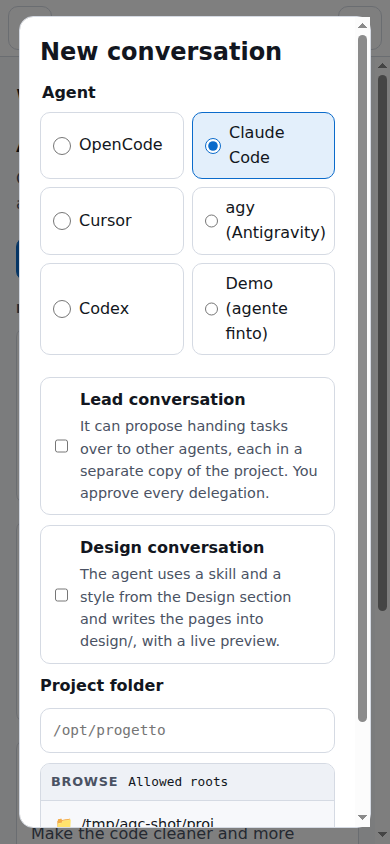
- In the Chat section, press New conversation (or the + button in the top-right corner).
- Pick the Agent that will act as the lead. All five agents in AgiCloud can act as a lead:
- Claude Code
- Codex
- Cursor
- OpenCode
- agy (Antigravity)
- Check the Lead conversation box ("It can propose handing tasks over to other agents, each in a separate copy of the project. You approve every delegation").
- If you pick agy: because headless
agycannot pause to ask for shell permissions, as the lead it automatically works with Permissions: Allow all (while you still approve every delegation card in AgiCloud). - If you pick Cursor: when the lead wants to call its delegation or thread-reading tools, Cursor will ask your permission in chat (whereas for Claude Code and OpenCode the lead tools are pre-authorized).
- If you pick agy: because headless
- Pick the Project folder and press Start.
- The conversation is created with the title
Capo · <project-name>, which stays fixed in the sidebar so you can spot it immediately.
Step 2: How the lead works and which tools it uses
When you start a lead conversation, AgiCloud automatically attaches the built-in agicloud MCP server to the agent (and for non-Claude lead agents, it also includes the lead instructions in the first message). The lead agent gets four tools:
delega(delegate): proposes handing a self-contained task over to another agent (specifying the target agent, title, full instructions, and reason). Because the delegated agent cannot see the lead conversation, the lead writes complete instructions including the goal, relevant files, constraints, and how to verify the result.stato_thread(thread status): lists all assigned child threads, their live status (running, waiting for your permission, done, error, idle), and how many files they modified.leggi_thread(read thread): reads a child thread's latest reply, the list of modified files in its separate copy, and optionally the fulldiff.scrivi_thread(message thread): sends follow-up instructions or corrections to an open child thread (if the agent is currently busy, the message is queued and runs as soon as the current turn finishes).
Step 3: Approve or reject a delegation proposal
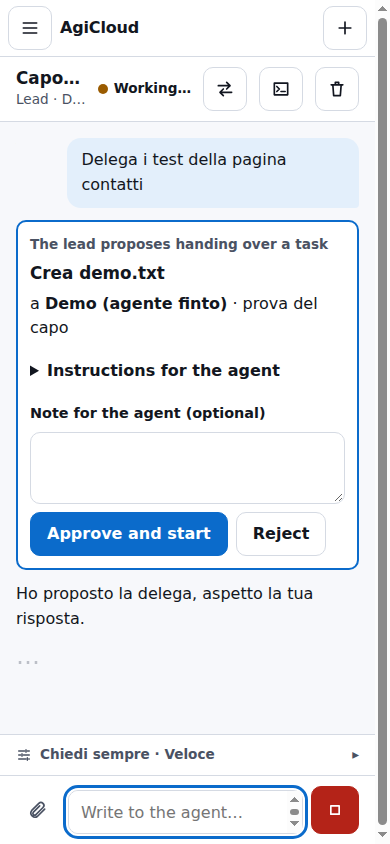
No delegated task ever starts on its own: whenever the lead calls delega, you receive a push notification on your phone and a card titled "The lead proposes handing over a task" appears in the lead chat:
- Check the task title, the chosen agent, and the reason on the card.
- Tap Instructions for the agent to expand and read the full prompt prepared by the lead.
- (Optional) In the Note for the agent (optional) box, you can write extra instructions: if you approve, your note is appended to the delegated agent's task; if you reject, your note is sent back to the lead so it knows what to adjust.
- Choose how to proceed:
- Approve and start: creates the child thread right away and starts the assigned agent;
- Reject: cancels the proposal and informs the lead, which can either do the work itself or propose a different plan.
Limits and expiration: a lead conversation can have one pending delegation proposal at a time (and up to 6 active child threads running or waiting for permission simultaneously). If you do not reply within 30 minutes (or if the server restarts while a proposal is pending), the proposal changes to Expired without a reply and the lead can propose it again when you return.
Step 4: Child threads in separate copies (git worktree)
As soon as you tap Approve and start, AgiCloud isolates the delegated agent's work:
- If the project is a Git repository (with at least one commit), AgiCloud creates a separate copy of the project using
git worktreeinside.agicloud/worktrees/<name>, on a dedicated branch namedagc/<name>, starting from the latest commit (HEAD).- Watch out for uncommitted changes: the separate copy starts from your repository's latest commit. Any uncommitted local edits in your main project folder are not copied into the worktree.
- If the project is not a Git repository (or has no commits yet): the child thread works directly in the project folder. In that case, avoid delegating tasks that edit the same files at the same time.
- Monitoring child threads from the lead chat:
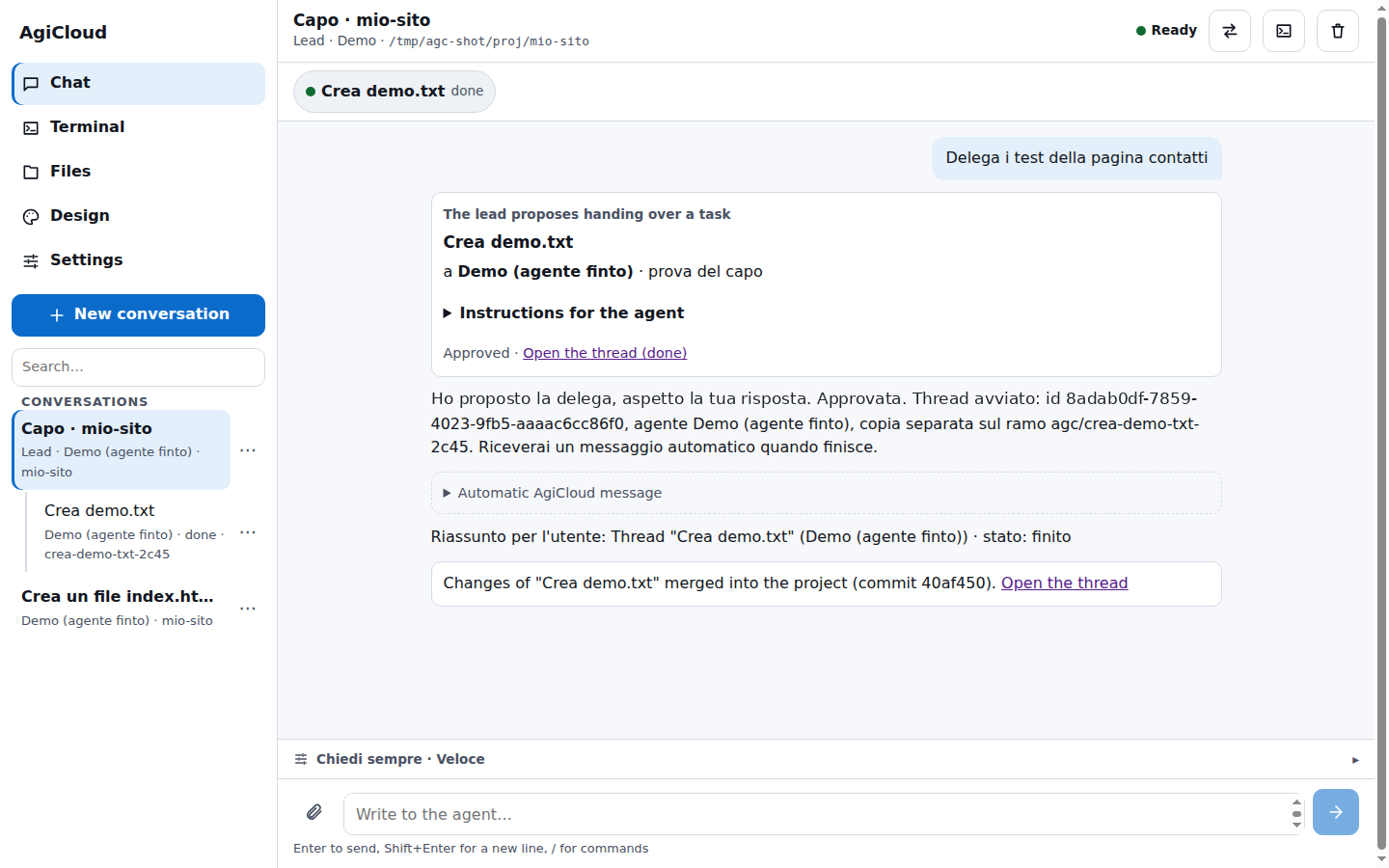
- in the left sidebar, assigned child threads appear indented right under the lead conversation;
- at the top of the lead chat, the Threads assigned by the lead bar shows a live status chip for each child thread;
- if a child thread needs your permission to edit a file or run a command, the permission card appears right at the top of the lead chat (and the phone notification takes you there), so you can approve or reject it without switching conversations.
- Automatic summary when finished: when a child thread finishes its turn, AgiCloud sends an Automatic AgiCloud message to the lead conversation. The lead reads the result with
leggi_thread, writes a concise summary for you, and suggests the next steps.
Step 5: Inspect changes, Merge or Discard (and what happens if merging fails)
The lead agent can never merge changes into your project on its own: that decision is always yours.
- Tap the child thread (from the chip bar at the top of the lead chat, the Open the thread link on the delegation card, or the sidebar).
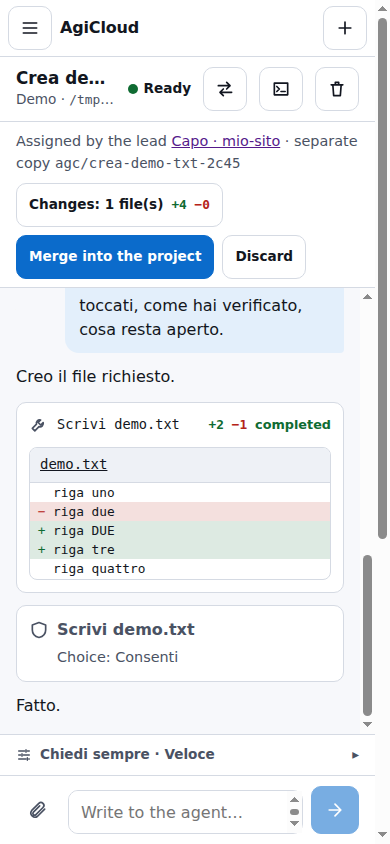
- At the top of the child thread you see the separate copy bar (
Assigned by the lead … · separate copy agc/...):- press Changes: N file(s) to toggle the color-coded diff showing every added (
+) and removed (-) line compared with the starting commit.
- press Changes: N file(s) to toggle the color-coded diff showing every added (
- Once the agent has finished working, pick one of the two actions:
- Merge into the project: AgiCloud puts the thread's agent to sleep, commits all changes in the separate copy (
AgiCloud: <title>), merges them into your main project's current branch withgit merge --no-ff, and removes the worktree and theagc/<name>branch. - Discard: after confirmation, AgiCloud stops the agent and deletes the separate copy and the
agc/<name>branch, leaving your main project untouched.
- Merge into the project: AgiCloud puts the thread's agent to sleep, commits all changes in the separate copy (
What happens if the merge fails?
Sometimes, while a child thread was working in its separate copy, the same files may have been modified in your main project (or by another thread you merged earlier), or you may have uncommitted local changes that conflict.
If git merge hits a conflict when you press Merge into the project:
- AgiCloud immediately aborts the merge by running
git merge --abort. - Your main project is not touched and is never left in a half-merged state.
- An error message appears ("Merge failed: … The project was not touched") and the separate copy stays open: you can commit or clean up changes in the main project, or ask the lead (via
scrivi_thread) or the child thread itself to resolve the conflict before trying the merge again.
Step 6: How to choose the right agent for each task
In its system instructions, the lead agent sees the list of agents connected on your AgiCloud server and follows a smart strategy to save your quotas and budget:
- Any connected agent can receive a delegation, including the same agent type as the lead (for example, a Claude Code lead can delegate both to OpenCode or agy and to another Claude Code thread).
- Use your strongest model for the lead and complex tasks: for architecture planning, coordinating work, or debugging tricky issues, use a top subscription agent such as Claude Code (Pro/Max), Codex (ChatGPT), or agy.
- Use free plans and different subscriptions for delegated tasks: for self-contained, routine, or parallel tasks (writing tests, updating docs or translations, searching the codebase, polishing a page), it pays to delegate to:
- an agent with free built-in models or a free tier (such as OpenCode, Cursor, or agy with your Google account);
- or an agent backed by a different subscription than the lead, so you do not drain a single subscription's 5-hour or weekly quota.
- Avoid pay-per-use API keys unless needed: when an agent is connected via a pay-per-use API key (for example Codex signed in with an API key instead of a ChatGPT account), every turn and file read is billed by token usage. By default, the lead avoids API-key agents unless you explicitly ask for them—or unless you intentionally configure ultra-low-cost models for delegations.
Next step
Want to delegate dozens of tasks in parallel at a fraction of a cent (or for free)? In the next tutorial, let's see how to connect OpenCode to providers like OpenRouter and set budget-friendly default models for your delegations: